Work Journal
How to Make Your Website Load Faster: 3 Ways to Improve FCP
Make your website feel faster by reducing request chains, preloading critical resources and delaying files that are not immediately needed.
What is First Contentful Paint?
According to Web.dev, First Contentful Paint (FCP) measures the ++time from when the user first navigated to the page to when any part of the page’s content is rendered on the screen++. Content might be text, images (including background images) or non-white canvas elements.
Check the following website: web.dev/articles/fcp for a real image sequence case on how this happens when you load a website.
A good FCP score is 1.8 seconds or less, as Web.dev says: “To ensure you’re hitting this target for most of your users, a good threshold to measure is the 75th percentile of page loads, segmented across mobile and desktop devices”.
How To Check FCP for A Website?
There are several ways to analyze a website’s performance. A quick initial analysis can be carried out using Google Chrome DevTools.
Open DevTools, select the Performance tab, and click Start profiling and reload page, represented by the circular reload icon in the top-left corner. Chrome will reload the page while recording what happens during the loading process.
Before running the test, you can configure settings such as network throttling and CPU throttling. These settings simulate slower internet connections or less powerful devices, helping you understand how the page performs under more realistic conditions.
Once the recording is complete, DevTools displays a timeline showing how long the browser spent loading resources, executing JavaScript, calculating layouts, and rendering the page. This can help identify problems such as slow requests, heavy scripts, long-running tasks, layout shifts, or elements that take too long to appear. See image below.
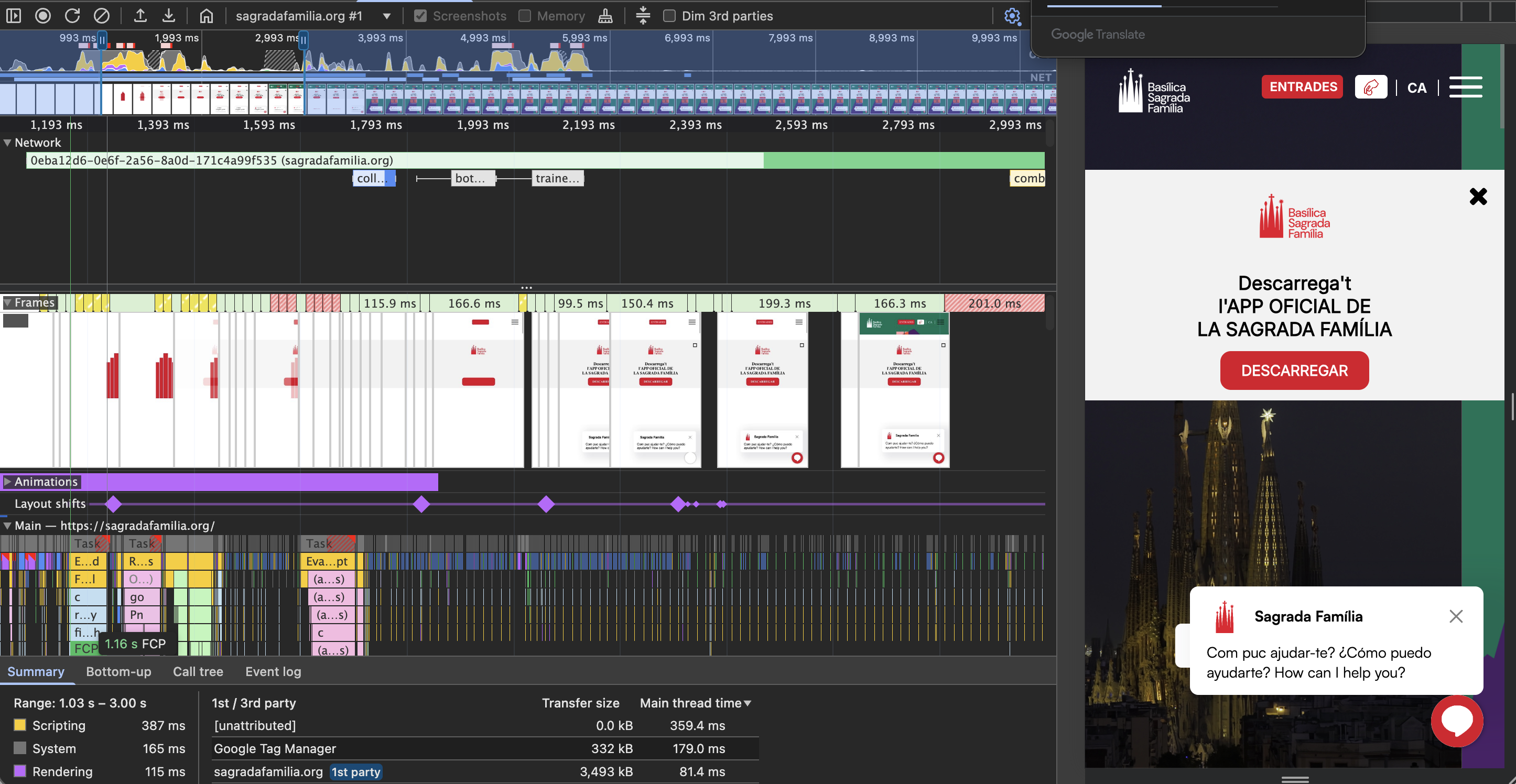
In this example, hovering over the FCP marker for the Sagrada Família website shows a value of 1.16 seconds, which is comfortably below the recommended threshold of 1.8 seconds.
However, and this is really important to take into consideration:
Never make final conclusions on a website only from one DevTools or Lighthouse test. Check how the website performs for real visitors, especially users with slower experiences.
Website professionals use Real User Monitoring as a source of information for judging FCP scores. In essence, it is performance data collected from people actually using your website, across different phones, computers, browsers, locations and network conditions.
RUM normally comes from a performance-monitoring script installed on the website. On the other hand, CrUX means the Chrome User Experience Report. This is Google’s public dataset containing aggregated performance measurements from real Chrome users. You can see CrUX data in tools such as PageSpeed Insights and the Search Console Core Web Vitals report.
As aforementioned, the value I’m interested in monitoring is the p75 which stands for 75th percentile.
Imaging you arrange 100 page visits from fastest to slowest. The p75 value is approximately the result experienced by the 75th visitor:
- 75 visits performed at least that well.
- The slowest 25 visits performed worse.
For example, suppose the website has an LCP p75 of 2.4 seconds. This means that approximately 75% of measured visits had an LCP of 2.4 seconds or less, while approximately 25% took longer. Core Web Vitals use this 75th-percentile approach when determining whether a page provides a good experience.
The value that I had on the image above (1.16 seconds) is different. DevTools result represents one controlled test on my computer, using the selected CPU and network settings. RUM and CrUX represent many real visits under a much wider range of conditions.
Google describes CrUX as field data and Lighthouse or DevTools testing as lab data.
CrUX results shown in PageSpeed Insights are generally aggregated over a rolling 28-day collection period, so changes to a website may take time to appear clearly in the data.
So, how can we improve our First Contentful Paint (FCP) scores?
In this post, I’ll share three practical techniques that I learned through hands-on experience and performance-focused courses to make my clients’ websites faster and convert more. These techniques are:
- Removing sequence chains
- Preloading critical resources
- Lazy-loading of non-critical resources
Remove Sequence Chains
When a browser loads a page, it first downloads the HTML document. As it reads that document, it discovers other resources such as CSS files, JavaScript files, images and fonts.
The problem is that some resources are not discovered immediately. A downloaded file may contain a reference to another file, which then contains a reference to another one. This creates a request chain.
For example:
HTML
└── main.css
    └── typography.css
        └── Inter-Regular.woff2
The browser cannot request typography.css until it has downloaded and parsed main.css. It then cannot discover the font until it has processed typography.css. Even when each individual file is relatively small, the sequential waiting time can delay the first visible content.
CSS imports can create request chains
One common cause is the use of @import inside a stylesheet:
/* main.css */

@import url("./colors.css");
@import url("./typography.css");
@import url("./layout.css");
The browser first downloads main.css. Only after reading it does it discover the other three stylesheets.
Where possible, these files can be referenced directly from the HTML:
<link rel="stylesheet" href="/css/colors.css">
<link rel="stylesheet" href="/css/typography.css">
<link rel="stylesheet" href="/css/layout.css">
This allows the browser to discover the stylesheets earlier and download them in parallel. Another option is to combine them during the build process.
Fonts can extend the chain
Fonts are often discovered through a CSS declaration:
@font-face {
  font-family: "Inter";
  src: url("/fonts/Inter-Regular.woff2") format("woff2");
  font-display: swap;
}
In this case, the browser must first download and parse the CSS before it knows that the font exists.
CSS is particularly important because stylesheets loaded in the document’s <head> are normally render-blocking. The browser needs them before it can safely display the page without showing unstyled content.
Fonts behave slightly differently. They do not always prevent the entire page from rendering, but they may delay the display of text or cause the browser to use a fallback font. The exact behaviour depends partly on the font-display value.
What the DevTools waterfall shows
In the first recording, the blue request represents the initial HTML document. The browser then begins downloading several CSS and JavaScript resources. Images, fonts and other page resources appear later as the browser discovers them.
Some resources are downloaded simultaneously. This is normal: browsers can make several requests in parallel and assign different priorities to them. A request chain specifically refers to resources that cannot be discovered or requested until an earlier resource has been processed.
The waterfall alone can suggest that a chain exists, but it does not always prove the relationship. In Chrome DevTools, the Initiator information can be used to confirm which HTML element, stylesheet or script caused a resource to be requested.
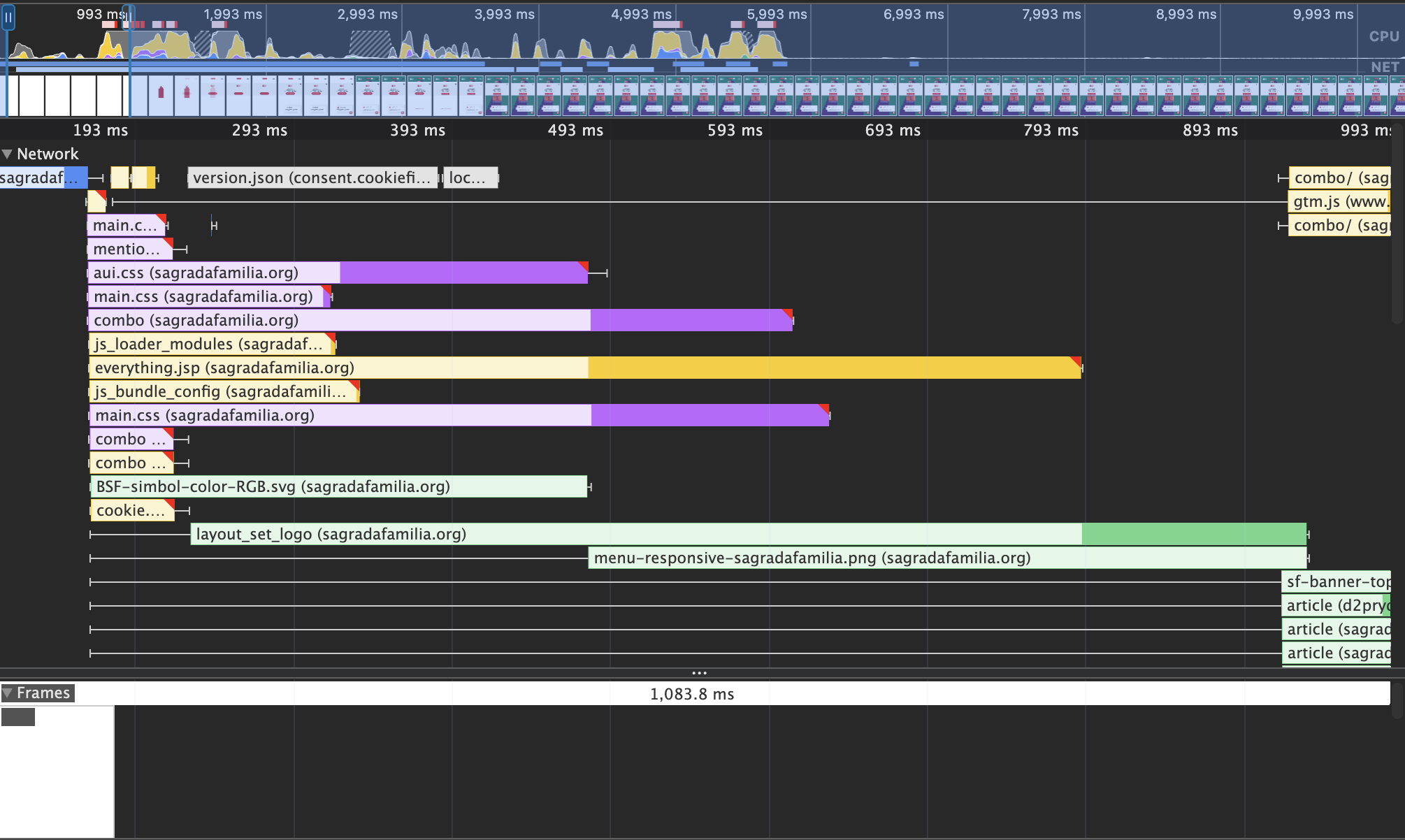
The initial HTML document is downloaded first, followed by CSS, JavaScript, fonts and images as the browser discovers them.
FCP does not wait for every resource
In the second recording, First Contentful Paint occurs at approximately 1.16 seconds. This is the point at which the browser displays the first meaningful piece of content, such as text, an image or an SVG.
It is important to notice that several network requests continue after the FCP marker. The browser does not need to finish downloading every font, image or JavaScript file before FCP can happen. It only needs enough HTML, styling and content to produce the first paint.
The optimisation goal is therefore not necessarily to load everything before FCP. It is to ensure that the resources required for the initial viewport are discovered and processed as quickly as possible.
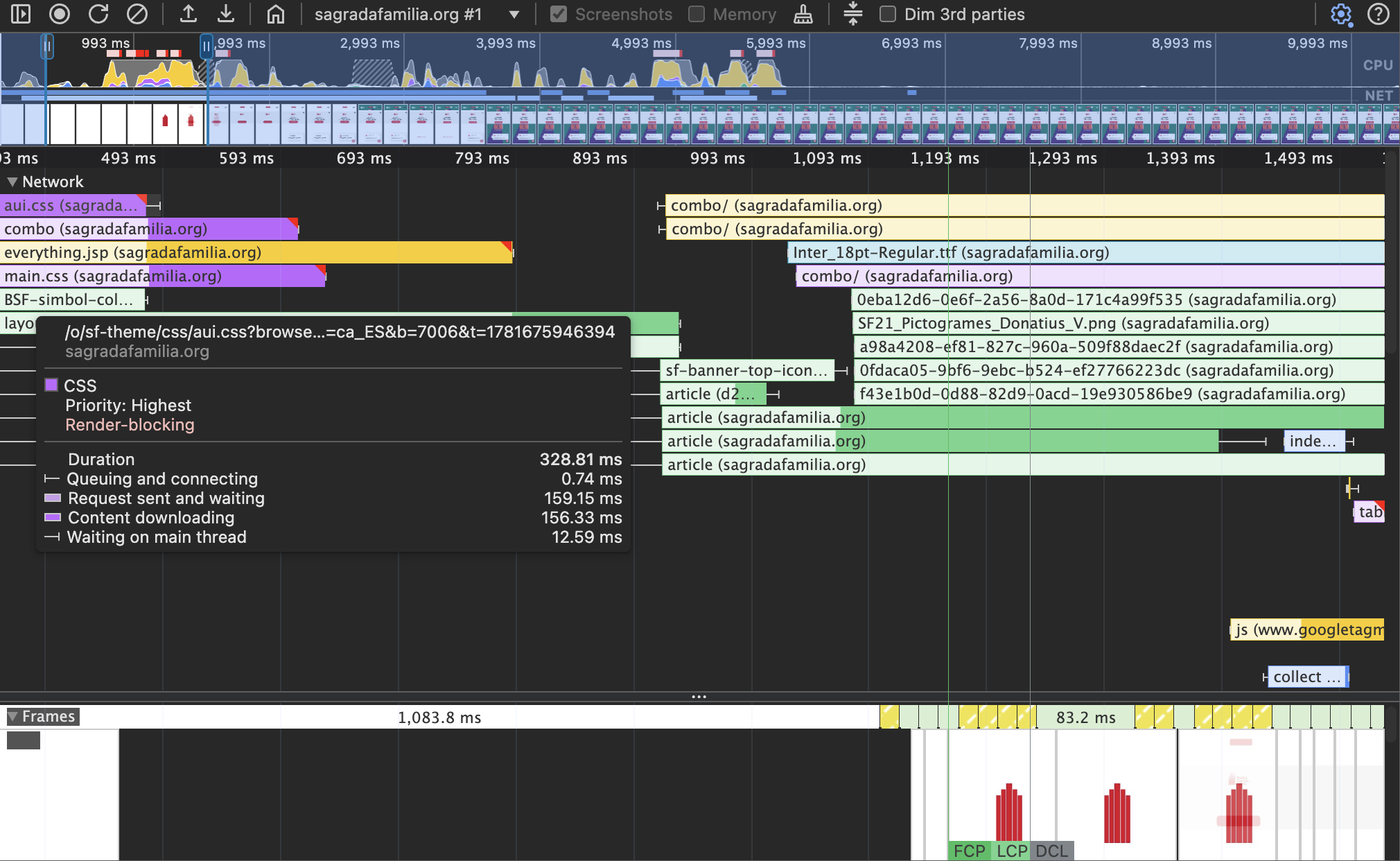
FCP occurs at around 1.16 seconds, while several non-critical resources continue loading in the background.
JavaScript can create similar chains
JavaScript can also discover and inject additional resources. For example:
const script = document.createElement("script");
script.src = "https://example.com/renderiframe.js";
document.head.appendChild(script);
The browser cannot request renderiframe.js until the first script has executed. The injected iframe might then request its own CSS, fonts or images:
HTML
└── app.js
    └── iframe.js
        ├── iframe.css
        └── iframe-font.woff2
This is common with chat tools, consent platforms, analytics scripts and embedded widgets. A long third-party chain can delay rendering, consume network capacity or keep the main thread busy.
JavaScript and CSS requests can also happen at the same time. Their order is influenced by when they are discovered, their browser priority and whether a script blocks HTML parsing. Parallel requests are not automatically dependencies; the important question is whether one request had to finish before another could begin.
Bundle dependencies at build time
Tools such as Webpack, Rollup, Vite and Lightning CSS can process dependency chains before the files are sent to the browser.
For example, a CSS bundler can follow these imports:
@import "./colors.css";
@import "./typography.css";
@import "./layout.css";
It can then generate an optimized output file:
<link rel="stylesheet" href="/styles.bundle.css">Instead of discovering several stylesheets one after another, the browser can request the prepared bundle immediately.
The objective is not always to combine the entire website into one enormous file. A very large bundle may include code that the current page does not need, delay processing and reduce the benefits of browser caching. A better strategy is usually to create a small number of well-structured bundles and keep non-critical code in separate chunks.
Bundling CSS also does not automatically solve font delays. Fonts remain separate resources, so they may require additional techniques such as using efficient woff2 files, limiting font variations, applying font-display: swap and preloading only the fonts required in the initial viewport.
Be careful when changing loading order
Optimization can introduce errors when scripts depend on each other. For example, a page may try to initialize a resource before its external SDK has finished loading.
This order is safe because deferred scripts preserve their document order:
<script src="/resource-sdk.js" defer></script>
<script src="/resource-init.js" defer></script>
The SDK is downloaded first in the document order, and the initialization code runs after it.
However, delaying, injecting or asynchronously loading the SDK without coordinating the initialization script could cause an error such as:
ResourceSDK is not definedReducing request chains should therefore improve the dependency structure, not simply delay files without checking what relies on them.
What should be loaded later?
Resources that are not required for the initial viewport are good candidates for later loading. These may include styles used only near the bottom of the page, images that are initially outside the viewport, optional widgets and JavaScript for interactions the user has not started yet.
The key question is:
Does the browser need this resource to display or operate the content the visitor can currently see?
When the answer is no, loading it later may shorten the critical path and help the browser reach FCP sooner.
Preloading Resources
Reducing request chains helps the browser discover important resources earlier and reduce dependencies. Another way to shorten the critical loading path is to explicitly tell the browser which files it should begin downloading immediately.
This is done with the preload resource hint:
<link
  rel="preload"
  href="/fonts/Inter-Regular.woff2"
  as="font"
  type="font/woff2"
  crossorigin
>
A preload instruction is placed in the document’s <head>. It tells the browser:
“This resource will be needed shortly, so start downloading it now rather than waiting until it is discovered later.”
Why fonts are normally discovered late
Fonts are commonly referenced from a CSS file:
@font-face {
  font-family: "Inter";
  src: url("/fonts/Inter-Regular.woff2") format("woff2");
  font-weight: 400;
  font-style: normal;
  font-display: swap;
}
Without preloading, the browser may need to complete several steps:
HTML
└── main.css
    └── Inter-Regular.woff2
The browser downloads the HTML, discovers main.css, downloads and parses the stylesheet, and only then discovers the font file.
By adding a preload instruction directly to the HTML, the font can be discovered much earlier:
HTML
├── Inter-Regular.woff2
└── main.css
This does not necessarily mean the font will finish downloading before the stylesheet. Browsers can only perform a limited number of tasks simultaneously, and requests are still affected by priority, connection availability and file size. However, the browser no longer needs to wait for the CSS file before it knows that the font exists.
But first…A Bit of Web Security
CORS means Cross-Origin Resource Sharing. It is a browser security system that controls whether a website can use files from another origin, such as a different domain or subdomain.
An origin is defined by three parts: protocol + domain + port.
As an example, these URLs are actually different origins:
When we load fonts into our web pages from another origin, such as a CDN, the server storing the font must explicitly allow the website to use it. They do it through an HTTP response header such as: Allow-Control-Allow-Origin: https://example.com.
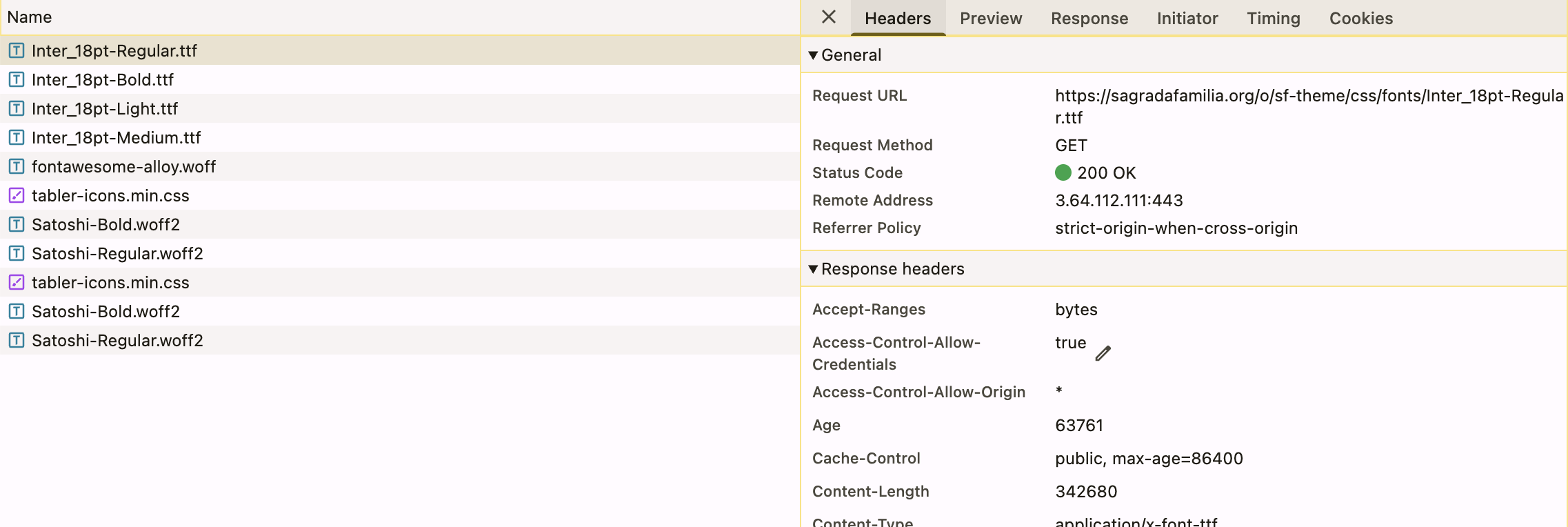
Let’s look at Sagrafamilia.org. We have around 10 fonts being filtered by my query “font” on the Network tab.
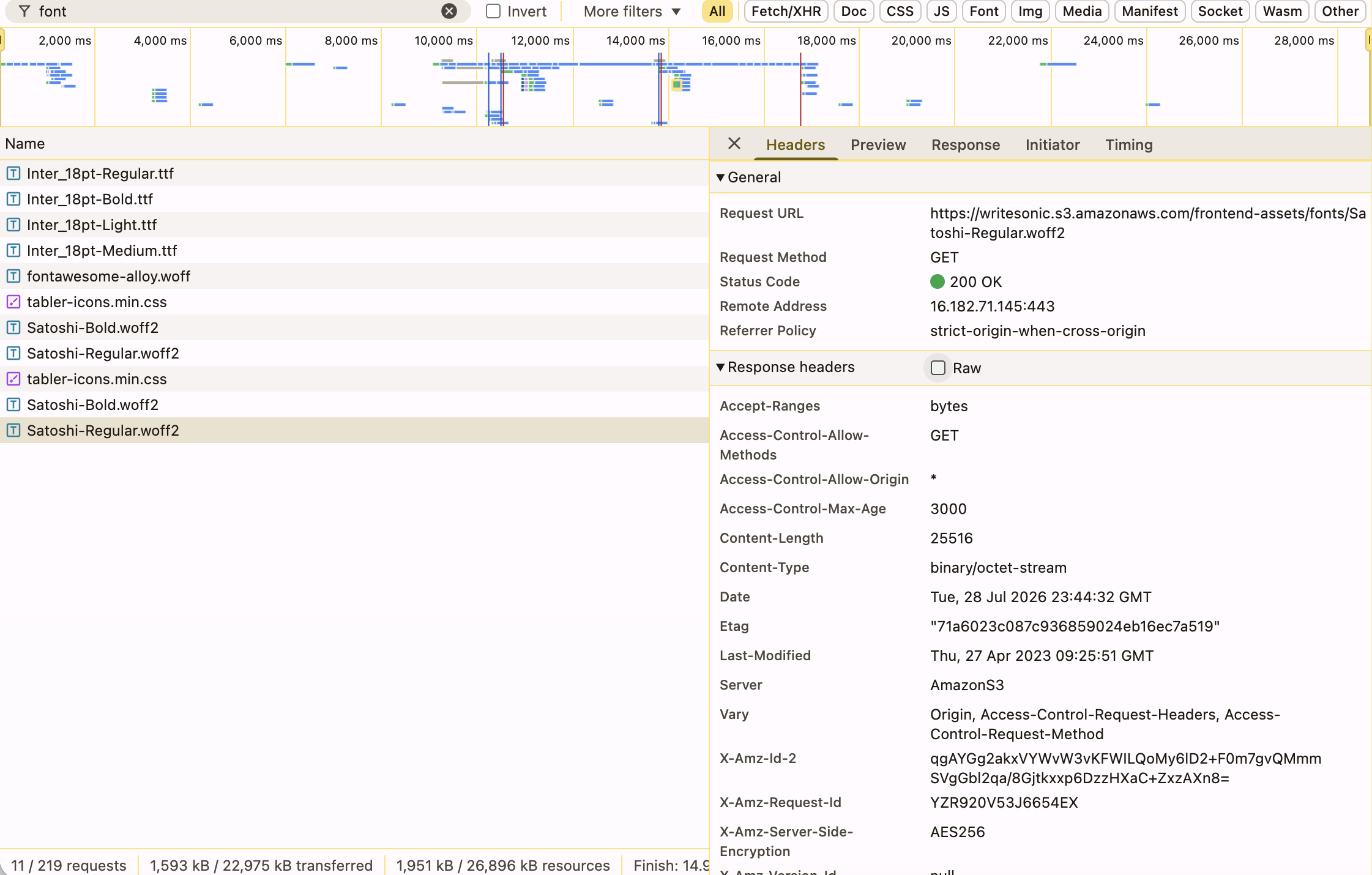
When I click on the last one I can see several insightful configurations on the request-headers and response-headers .
Request headers are information my browser sends to the server when asking for a file. Response headers are the information the server sends back with the file.
On the request headers there are these values:
Origin: https://widget.writesonic.comsec-fetch-mode: corssec-fetch-site: cross-site
This confirms that the font is requested from a different origin using CORS.
Conversely, the response headers show:
access-control-allow-origin: *
Which means that Amazon S3 allows any website to use the font, so CORS is correctly configured.
I already see a small improvement idea in the response, it has content-type: binary/octet-stream but we know that because it is a font it should return Content-Type: font/woff2.
By looking at the initiator tab on the Network section, we can discover how the font Satoshi-Regular.woff2 is actually loaded into the website (and whether they implement good optimization practices) by looking at the initiator tab of that same network request.
The initiator tab shows which files or resources initiated a specific request that our browser fetched.
And, as you can see, font is not preloaded.
Writesonic iframe HTML
→ main.9a7be0f5.css
→ Satoshi-Regular.woff2
So the font request cannot begin until the iframe loads and its CSS is downloaded and parsed. This is a clear request chain.
A preload would make the font appear directly from the HTML:
HTML
├── Satoshi-Regular.woff2
└── main.css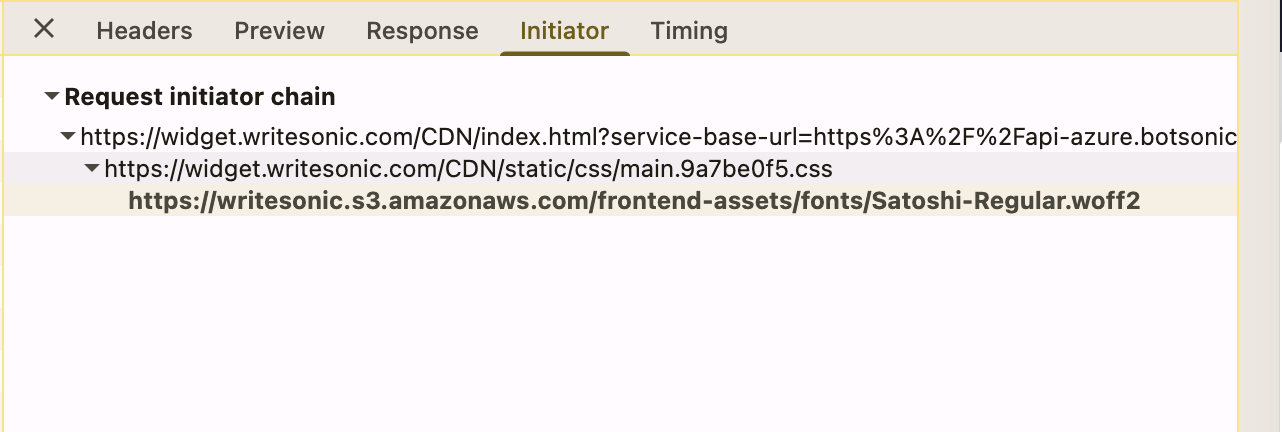
This is not necessarily a “bad” thing. It depends on where it will be loaded. If this font was really necessary for the viewport and initial text displayed to users, then I would find a way to preload it.
In this case, the font belongs to a widget from the Writesonic AI marketing company which allows websites to add an AI customer-support chatbot. The request chain is as follows:
- Sagrafa Família Page loads
- Writesonic script (this can be seen on the main HTML page with the
<script>tag on it. - Chatbot iframe
- Chatbot CSS
- Satoshi font
Full Process For Preloading Fonts
Now that you know how fonts are loaded, then how do we preload a font?
A complete font preload looks like this on the head component of the HTML page:
<link
  rel="preload"
  href="/fonts/Inter-Regular.woff2"
  as="font"
  type="font/woff2"
  crossorigin
>
Each attribute gives the browser important information:
rel="preload"tells it to download the file early.hrefprovides the file’s location.as="font"identifies the resource as a font.type="font/woff2"specifies the font format.crossoriginensures the request uses the same CORS mode as the later CSS font request. You only write that on the preload code.
The same file must then be referenced in @font-face from the CSS script that loads that pre-loaded font:
@font-face {
  font-family: "Inter";
  src: url("/fonts/Inter-Regular.woff2") format("woff2");
  font-display: swap;
}
The URLs must match. Otherwise, the browser may treat them as separate files and download the font twice.
What are other options apart from preloading resources for speeding up my website?
You can host your fonts locally. But, what does that mean?
Once the website is published, its files are deployed to a web server or a content delivery network. The font becomes part of the website’s deployed assets, alongside its CSS, JavaScript and images.
For example, the project may contain this structure:
project/
├── public/
│   └── fonts/
│       ├── Inter-Regular.woff2
│       └── Inter-Bold.woff2
├── src/
└── package.json
During deployment, the contents of the public directory are uploaded to the website’s hosting infrastructure. Visitors then request the font from a public URL such as:
https://example.com/fonts/Inter-Regular.woff2The font is therefore self-hosted or first-party hosted. It is served by the same website infrastructure as the rest of the page, not from your computer.
This is the case for Sagrada Familia for some of its fonts like Inter_18pt-Regular.ttf.
Before self-hosting a font, you should also verify that its licence permits the font files to be hosted and distributed from your website.
Why self-host fonts?
Externally hosted font services can be convenient, but they introduce another domain into the critical loading path.
A typical external font chain may look like this:
HTML
└── External font stylesheet
    └── External font file
The browser may also need to perform additional work before it can download those files:
DNS lookup
→ establish connection
→ negotiate HTTPS
→ request stylesheet
→ discover font
→ request font
When fonts are hosted on the website’s own origin or CDN, the browser can often reuse an existing connection and the resource URLs remain under your control.
Self-hosting can therefore provide several advantages:
- More control over filenames, caching and deployment
- Fewer third-party dependencies
- More predictable resource URLs
- Easier preloading
- Potentially faster delivery through your own CDN
- Fewer external connections during the critical loading period
It does not automatically guarantee better performance. A slow server, poor cache configuration or oversized font files can still produce a bad result. However, self-hosting gives the development team more control over those factors.
Avoid hardcoding provider-managed font URLs
An external font provider may generate URLs similar to this:
https://fonts.example-provider.com/s/inter/v18/abc123.woff2
It may be technically possible to copy that URL into a preload instruction:
<link
  rel="preload"
  href="https://fonts.example-provider.com/s/inter/v18/abc123.woff2"
  as="font"
  type="font/woff2"
  crossorigin
>
However, this can be fragile. The provider controls the generated filename, version and delivery path. If the stylesheet later points to a different asset, your preload may request an obsolete font while the CSS downloads another one.
This can result in an unnecessary request or even two versions of the same font being downloaded.
A more reliable approach is to obtain the font files legally, add them to your own project and preload the stable URLs that you control.
Only preload fonts needed immediately
Preloading does not make a file free to download. It simply moves the request earlier.
Every preload competes for bandwidth with other important resources such as the HTML, critical CSS and the page’s main image. Preloading too many files can make performance worse. As they say, “optimizing for everything is the same as optimizing for nothing!”
Suppose a website uses the following fonts:
Inter Regular
Inter Medium
Inter Bold
Inter Italic
Inter Bold Italic
Decorative Heading Regular
It would usually be a mistake to preload all six. Some may not appear above the fold, while others may not be used on the current page at all.
A better strategy might be to preload only the font used for immediately visible body text:
<link
  rel="preload"
  href="/fonts/Inter-Regular.woff2"
  as="font"
  type="font/woff2"
  crossorigin
>
The remaining fonts can still be referenced through CSS and downloaded when the browser determines that they are needed.
The same principle applies to font weights. If the page initially displays only regular and bold text, do not preload medium, italic and decorative variations without a clear reason.
Preload is not the same as loading the font
A preload instruction downloads the resource and places it in the browser cache, ready for use. It does not itself apply the font to the page.
The font still needs an @font-face declaration:
@font-face {
  font-family: "Inter";
  src: url("/fonts/Inter-Regular.woff2") format("woff2");
  font-weight: 400;
  font-style: normal;
  font-display: swap;
}

body {
  font-family: "Inter", Arial, sans-serif;
}
The responsibilities are different:
<link rel="preload">
Downloads the file early

@font-face
Defines the font for CSS

font-family
Applies the font to an element
All three parts must agree on which font file is being used.
Use font-display alongside preloading
Preloading can help the font arrive sooner, but the page should still behave sensibly when the font is slow or unavailable.
The font-display property controls what happens while the browser waits:
@font-face {
  font-family: "Inter";
  src: url("/fonts/Inter-Regular.woff2") format("woff2");
  font-display: swap;
}
With font-display: swap, the browser can initially show text using a fallback font and replace it when the custom font becomes available.
This avoids leaving text invisible for an extended period. However, the replacement font may have different dimensions, which can cause content to move. Choosing a fallback font with similar proportions can reduce that effect.
Preloading other critical resources
Fonts are not the only resources that can be preloaded. The technique can also be used for critical images, CSS and JavaScript.
For example, a hero image that is the page’s Largest Contentful Paint element may be preloaded:
<link
  rel="preload"
  href="/images/hero.webp"
  as="image"
  type="image/webp"
>
A critical stylesheet can be preloaded using:
<link
  rel="preload"
  href="/css/critical.css"
  as="style"
>
However, preloading a stylesheet does not automatically apply it. It still needs to be loaded as a stylesheet:
<link rel="stylesheet" href="/css/critical.css">Browsers can usually discover a normal stylesheet in the document’s <head> very quickly, so preloading it is not always useful. Preload is most valuable when an important resource would otherwise be discovered late.
“Is this file important for the initial viewport, and would the browser otherwise discover it too late?”
Lazy Loading Resources
Not every resources is needed to display the first visible content, also known as FCP. JavaScript used for analytics, tracking or additional functionality can be delayed to produce a better FCP score and a better user experience.
For example, a normal script can block the page:
<script src="/everything.jsp"></script>When the browser reaches it, it may pause HTML parsing, download the file and execute it before continuing. In the Sagrada Família recording, everything.jsp is marked as render-blocking and takes around 1.05 seconds, making it worth investigating.
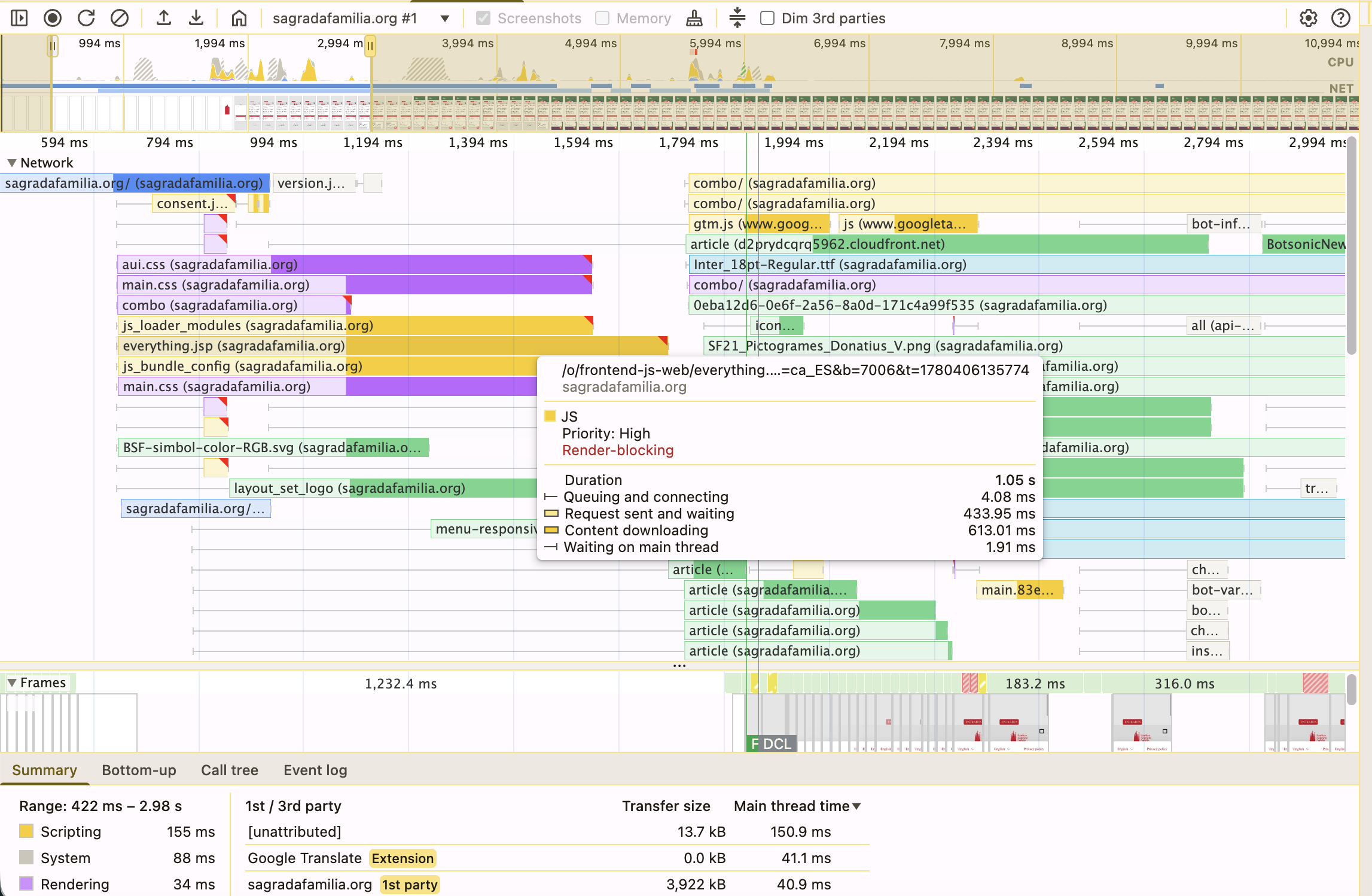
The question is: are we render blocking the main thread at the right time? Is this affecting our user experience? And, if we wanted to change that, how would you do it?
Let’s start with learning about async and defer attributes.
What does async do?
Sagrada Família uses async for scripts such as Facebook tracking and Botsonic:
<script
  src="https://connect.facebook.net/signals/config/..."
  async>
</script>
<script
id="Botsonic"
src="https://widget.writesonic.com/CDN/botsonic.min.js"
async>
</script>async allows the browser to continue reading the HTML while the script downloads. However, once the download finishes, the script executes immediately and can briefly interrupt parsing.
This is normally suitable for independent third-party scripts because they do not rely on other scripts executing in a particular order.
async versus defer
A deferred script also downloads without blocking HTML parsing:
<script src="/scripts.js" defer></script>The difference is that defer waits until the HTML has been parsed before executing. Deferred scripts also maintain their document order. For scripts that are not required for the initial content, defer is therefore often the safer option.
Normal script: downloads and blocks when executed
Async: downloads in parallel, executes as soon as ready
Defer: downloads in parallel, executes after HTML parsing
It is important to note that neither async nor defer truly postpones the download until the user needs the feature. True lazy loading would mean loading the script only after an interaction, consent decision or another later condition.
The objective is to keep non-critical JavaScript away from the path to FCP, allowing the browser to prioritize the HTML, CSS, fonts and images needed for the first visible content.
So, when to use which?
Sagrada Família has a chat embedded on their page. The first thing I would ask: how many users use that chat widget? how critical is it for the booking flow to happen or conversion to take place?
At that what point in time do users click on the chat? Is it immediately after loading the page or p75 is > 10 seconds?
Usage and website analytics can help discover patterns and insights into how to optimize your website.
If, let’s say only 2% of users use the chat, and most of them use it after being more than 10 seconds on the page, I would load it after the page finishes loading and only when the visitor clicks the chat button.
We could insert this
<script>
  window.addEventListener("load", () => {
    const script = document.createElement("script");
    script.src = "https://widget.writesonic.com/CDN/botsonic.min.js";
    script.async = true;
    document.body.appendChild(script);
  });
</script>
Conclusions
Website performance optimization is not only about making individual files smaller or adding technical attributes to scripts and fonts. It requires understanding how the page is built, which resources are needed first, and how users actually interact with the product.
Improving First Contentful Paint means shortening the path between the initial request and the first visible content. In practice, this may involve reducing request chains, preloading truly critical resources, and delaying scripts or assets that are not needed immediately. However, each change should be based on evidence from tools such as Chrome DevTools and, where possible, real-user data.
The fastest technical solution is not always the best product decision. A tracking script may be important for measurement, while a chatbot may support customer service. The objective is therefore not to remove everything, but to load each resource at the right moment and with the right priority.
Ultimately, good performance work is contextual. It requires understanding the website’s purpose, its user journey and the business value of each feature. The goal is not simply to achieve a better score, but to create a faster and more stable experience for real users.