Barcelona is one of the most popular cities to visit in 2026. Every year, millions of people experience the monuments, streets, food, culture, and architecture that Barcelona offers, including the famous church designed by Gaudí: La Sagrada Família.
I grew up near Barcelona, so I know the city pretty well. As a kid, I did not really understand how special Barcelona was until later, when I realized how many cultural activities, museums, outdoor places, beaches, and architectural sites we had around us.
As I became more exposed to marketing, analytics, and web performance, I started to see Barcelona differently. I started to notice how the city positioned itself as one of the most beautiful places in the world, with world-class food, cultural offers, and natural attractions. The beach and the mountains are both accessible in less than one hour.
Today, I want to explore how websites communicate with marketing tools
such as Google Tag Manager, Google Analytics 4, and other platforms
through the famous dataLayer.
We are going to look at how cookies work, how they are stored, and how data is shared from websites to marketing and analytics tools such as GTM and GA4.
Before starting, this is something useful to remember:
Cookies are the website’s memory. The
dataLayeris the website’s messenger.
When a user makes a cookie choice, the cookie stores that choice for
later. The dataLayer tells Google Tag Manager what changed
right now.
This is where cookie banners and tracking overlap: the banner choice must be stored in the browser and also communicated correctly to the tracking tools.
This article is for three types of readers:
- If you want to understand how cookies work behind the scenes, what changes in the browser when you make a choice, and how to debug that yourself.
-
If you have experienced website cookies hundreds of times but want
to understand the technical side, including how cookies relate to
the
dataLayer. -
If you have worked with
dataLayerevents but never really worked with cookies, or the other way around. Maybe you want the tools to understand how website events send analytics data to your marketing tools.
Note: this article is not meant for advanced developers who already
have years of experience working with dataLayer
implementations and cookie banners. Some parts may feel basic if you already
work with this every day.
With that in mind, let’s start with a real-life scenario: the Sagrada Família website.
Part 1: What are cookies?
Cookies are small text files stored on your device by your web browser when you visit a website. They act as the website’s memory, allowing it to remember your actions, login status, and preferences, so you do not have to repeat them on every visit.
They can look something like this:
[
  {
    "name": "_ga",
    "value": "GA1.1.123456789",
    "domain": ".example.org",
    "expires": 1780000000
  }
]
When I opened the Sagrada Família website, before clicking anything, my inspection tool showed that there were no cookies being stored in my browser:
"cookies": [],
"documentCookie": "",
"localStorage": {
  "cookiefirst-id": "null"
}
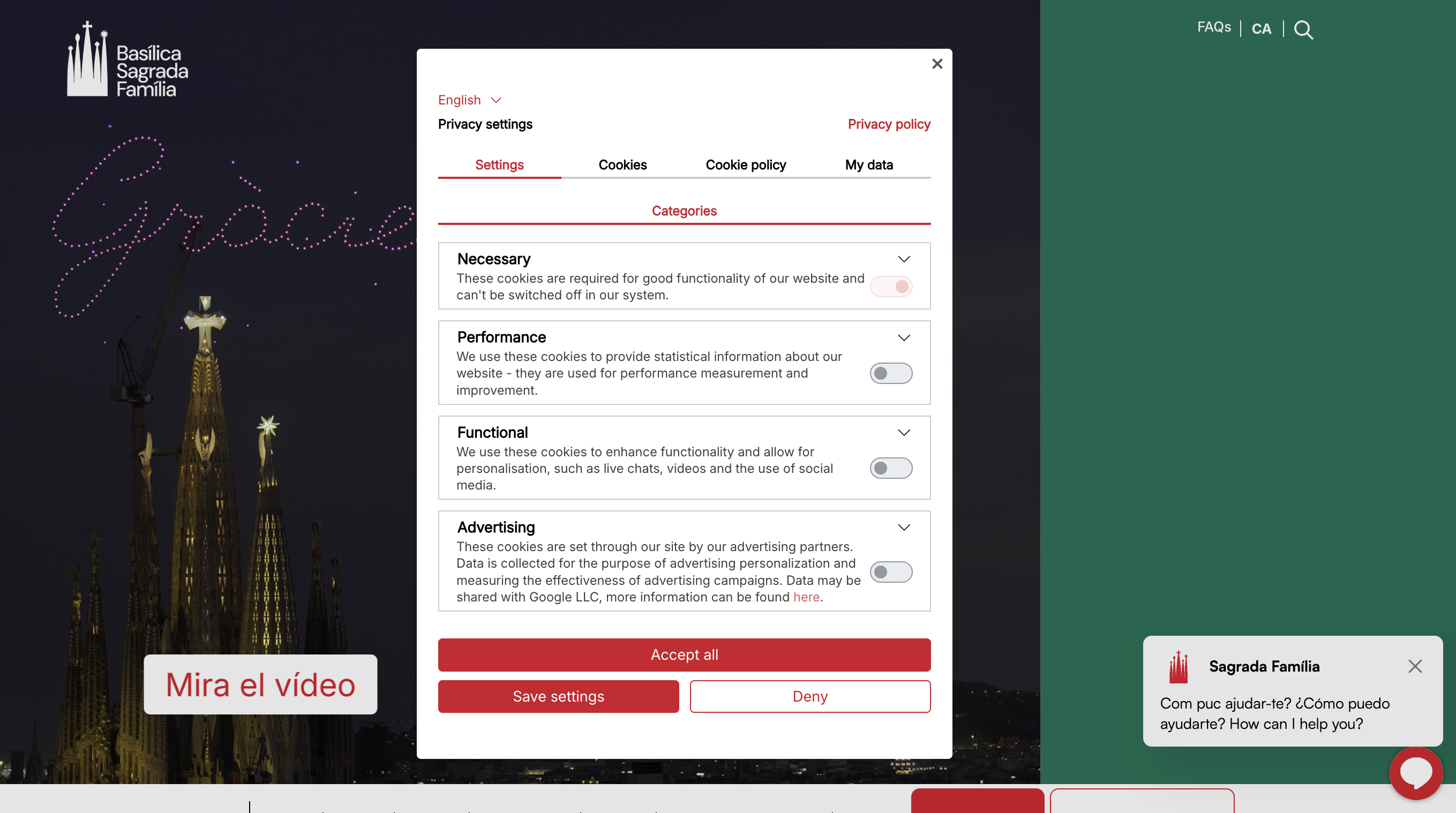
But the moment I clicked “Deny" everything changed:
"storageAfterDecline": {
  "cookies": [
    {
      "name": "cookiefirst-consent",
      "domain": "sagradafamilia.org",
      "value": "%7B%22necessary%22%3Atrue%2C%22performance%22%3Afalse%2C%22functional%22%3Afalse%2C%22advertising%22%3Afalse%7D",
      "expires": 1813396915
    }
  ],
  "localStorage": {
    "cookiefirst-consent": "{\"necessary\":true,\"performance\":false,\"functional\":false,\"advertising\":false}",
    "cookiefirst-id": "\"7d40928a-ef52-4d50-9e98-39f2cc7f1dbd\""
  },
  "sessionStorage": {}
}
How do we interpret this result?
| Field | What it means |
|---|---|
name | cookiefirst-consent is the consent cookie created by
CookieFirst. It stores the user’s cookie choice.
|
domain | This means the cookie belongs to the Sagrada Família domain. |
value | This is the URL-encoded consent decision. When decoded, it becomes easier to read. |
expires | This is when the cookie expires. In this result, the expiration is around 360 days after the consent timestamp. |
localStorage |
CookieFirst saved the same consent decision in
localStorage. So the decision is stored both as a
cookie and in localStorage.
|
When decoded, the consent value looks like this:
{
  necessary: true,
  performance: false,
  functional: false,
  advertising: false,
  timestamp: 1782292915,
  type: "category",
  version: "c279cd09-2ec6-45f9-8ba3-f9cce5e82b7b"
}
Local storage is different from cookies. It can store data in the browser, but it is not automatically sent with every server request in the same way cookies can be. That makes it useful for storing preferences or consent-related information in the browser.
What happens if I accept all cookies?
When I accepted all cookies, the browser storage changed completely.
Before making a choice, there were no cookies stored and
documentCookie was empty. After accepting, the website created
a cookiefirst-consent cookie where all categories were set
to true: necessary (minimum standard for running a
website), performance, functional, and advertising.
It also created Google-related cookies such as _gcl_au,
_ga, and _ga_Z9S7Q33FL5.
In this case, accepting cookies allowed analytics and advertising tools to start storing identifiers in the browser.
It looked like this:
"cookies": [
  {
    "name": "cookiefirst-consent",
    "domain": "sagradafamilia.org",
    "value": "%7B%22necessary%22%3Atrue%2C%22performance%22%3Atrue%2C%22functional%22%3Atrue%2C%22advertising%22%3Atrue%7D"
  },
  {
    "name": "_gcl_au",
    "domain": ".sagradafamilia.org",
    "value": "1.1.1770990631.1782294059"
  },
  {
    "name": "_ga",
    "domain": ".sagradafamilia.org",
    "value": "GA1.1.696962384.1782294060"
  },
  {
    "name": "_ga_Z9S7Q33FL5",
    "domain": ".sagradafamilia.org",
    "value": "GS2.1.s1782294059$o1$g0$t1782294059$j60$l0$h1907544524"
  }
]
This is already useful. We can see that the cookie banner choice is not just a UI decision. It changes what is stored in the browser.
After decline, only the consent cookie and local storage values were
saved, with optional categories set to false.
After accept, the consent cookie was updated and Google-related cookies appeared.
That is the kind of difference you want to verify when auditing a cookie banner.
Part 2: Understanding the dataLayer
The dataLayer is a JavaScript object that connects website
events, such as clicks, scrolls, page loads, searches, purchases, or consent
changes, to Google Tag Manager.
It helps create a more reliable connection between what happens on the website and what gets sent to analytics and marketing tools.
Google Analytics 4 gives you some standard events, such as page views and scrolls. But if you want to understand specific user behavior on your website, you usually need custom events.
With a dataLayer, you can send events such as login,
purchase, search, video play, form submission, ticket selection, or
checkout step. You can also pass extra values, such as selected date,
product type, ticket category, language, clicked link destination, or
product color.
For Sagrada Família, imagine there is a search bar for guided tours.
The website could send an event such as search_term.
If many users search for “guided tours with video included” or “Sagrada Família with audio guide”, the business team might decide to create or promote that offer because the website is showing a demand signal.
Another useful case is tracking ancillaries.
What if the business could measure how many people buy the standard ticket and then add a guided tour with transport included? What if they could see how many people add a Barcelona T-shirt, an audio guide, or a tower visit?
These are useful business questions. A correct
dataLayer setup helps website owners answer them.
In this case, the first check we can do is simple:
Does the website have a
dataLayerwhen the page opens? And what events are already showing?
When I visited https://sagradafamilia.org/, I saw some
interesting results.
First, there is a cookie banner. Before touching anything on that banner, I wanted to see what was happening behind the scenes.
I ran my code and got this:
{
  "exists": true,
  "isArray": true,
  "length": 4,
  "eventNames": ["gtm.js"],
  "lastEntries": [
    {
      "0": "consent",
      "1": "default",
      "2": {
        "ad_storage": "granted",
        "analytics_storage": "granted",
        "functionality_storage": "granted",
        "wait_for_update": 2000
      }
    },
    {
      "0": "consent",
      "1": "default",
      "2": {
        "ad_storage": "denied",
        "analytics_storage": "denied",
        "functionality_storage": "denied",
        "region": ["AT", "BE", "BG", "HR", "CY", "CZ", "DK", "EE", "FI", "FR", "DE", "GR", "HU", "IE", "IT", "LV", "LT", "LU", "MT", "NL", "PL", "PT", "RO", "SI", "ES", "SE", "GB"],
        "wait_for_update": 2000
      }
    },
    {
      "0": "set",
      "1": {
        "developer_id.dNjAwYj": true
      }
    },
    {
      "gtm.start": 1782286063647,
      "event": "gtm.js"
    }
  ]
}
The first result, "exists": true, means the website has a
dataLayer available in the browser. In simple terms, the website
has created the object that Google Tag Manager can read from.
That is already useful information because, without a
dataLayer, there would be no central place where the
website can push structured events, consent signals, or business
information for GTM to process.
The second result, "isArray": true, means the
dataLayer is an array.
That might sound technical, but the idea is simple: the
dataLayer behaves like a list. Every time the website wants
to communicate something to GTM, it adds a new item to that list.
For example, it can add a page load, a consent setting, a purchase, a search, a button click, or any other event the business wants to measure.
The "length": 4 result means that, at the moment I checked
the page, the dataLayer already had four entries inside it.
I had not clicked the cookie banner yet. I had not searched anything.
I had not bought a ticket. Still, the website had already pushed four
pieces of information into the dataLayer.
This is an important detail. The dataLayer is not only used
for clicks and purchases. It can also be used for setup instructions, consent
rules, and the initial GTM load event.
The "eventNames": ["gtm.js"] result means that, out of those
four entries, the only entry with a clear event name is
gtm.js.
gtm.js is the event that Google Tag Manager adds when the GTM
container starts loading on the page. It is basically GTM saying: “I have
started.”
This is not a business event like “ticket purchased” or “guided tour selected.” It is more like a technical startup signal.
That is why the result only shows one event name. The other entries
exist in the dataLayer, but they are not written as
normal website events. They are commands.
The first entry is:
{
  "0": "consent",
  "1": "default",
  "2": {
    "ad_storage": "granted",
    "ad_user_data": "granted",
    "ad_personalization": "granted",
    "analytics_storage": "granted",
    "personalization_storage": "granted",
    "functionality_storage": "granted",
    "security_storage": "granted",
    "wait_for_update": 2000
  }
}
This looks strange because it has "0", "1",
and "2" instead of names like "event" or
"page_type".
But the logic is simple. This is a gtag command stored inside
the dataLayer.
The gtag() command is a JavaScript function used in Google’s
measurement and advertising setup. The consent command manages user privacy
choices. It sets default permissions and updates them, for example from
denied to granted, when a user interacts
with a cookie banner.
The first part, "0": "consent", means the command is
related to consent.
The second part, "1": "default", means it is setting the
default consent state. Before the user chooses anything on the cookie
banner, the website is telling Google what the default consent
behavior should be.
The third part contains the actual consent settings. These values say that, by default, storage for ads, analytics, personalization, functionality, and security is granted.
However, this is only the first consent rule. Right after that, the website adds a second consent rule.
{
  "0": "consent",
  "1": "default",
  "2": {
    "ad_storage": "denied",
    "ad_user_data": "denied",
    "ad_personalization": "denied",
    "analytics_storage": "denied",
    "personalization_storage": "denied",
    "functionality_storage": "denied",
    "security_storage": "denied",
    "wait_for_update": 2000,
    "region": ["AT", "BE", "FR", "DE", "IT", "ES", "SE", "GB"]
  }
}
This is also a consent default command, but now there is a very
important extra field: region.
This means the rule applies only to specific countries. These are country codes. For example, ES means Spain, FR means France, DE means Germany, IT means Italy, and GB means Great Britain.
So when I see this region list, I know the website is applying a stricter default consent behavior for visitors from those countries.
Since Spain is included as ES, this matters directly for a website like Sagrada Família, where many users will visit from Barcelona, Spain, or other European countries.
Inside that regional rule, almost everything is set to
denied. This means that, for users in those listed
regions, the default state is more restrictive before the user makes a
choice on the cookie banner.
So the website is basically saying:
- For general users, use granted consent as the default.
- For users in these listed regions, use denied consent as the default.
That is how we can see that the site is treating European or privacy-regulated traffic differently before the visitor accepts or rejects the cookie banner.
The value "wait_for_update": 2000 tells Google tags to wait
up to 2000 milliseconds, which is 2 seconds, for a consent update.
The website is giving the cookie banner a small window of time to collect the user’s choice before the tags continue. This does not mean the user is forced to wait exactly 2 seconds. It means Google’s tagging system has a short delay available so the consent state can be updated properly.
The "set" command with
"developer_id.dNjAwYj": true looks like an internal Google
or tag vendor identifier. It is not telling us that a user clicked something,
searched something, or bought something.
Finally, "event": "gtm.js" means the GTM container has started.
This is usually one of the first events you see when checking a website
with Google Tag Manager.
What do the consent options mean?
Now that we have seen how the dataLayer behaves, let’s look
at the consent options.
| Consent field | What it means in this kind of audit |
|---|---|
ad_storage |
The website can use advertising cookies. For example, this can
help Google understand that a visit came from an ad and later
whether that visit became a ticket purchase. In the browser,
this can create cookies like _gcl_au.
|
ad_user_data | The website has permission to send advertising-related user data to Google, usually for conversion measurement, depending on the implementation. |
ad_personalization | The website can use the visitor’s behavior for personalized ads or remarketing. |
analytics_storage | Analytics cookies can be used. This helps tools like GA4 understand the user journey more clearly. |
personalization_storage | The website can remember information that improves the user experience, such as previous choices or preferences. |
functionality_storage | The website can remember practical settings that make the site easier to use, such as selected language, region, currency, or interface preference. |
security_storage | The website can use storage for security and protection, such as authentication, fraud prevention, or keeping checkout sessions safe. |
What happened after waiting a few more seconds?
I decided to run the script again, but with a small change: I waited 6
extra seconds to see if the dataLayer would show more items
on the website.
And it did.
I obtained all consent events listed:
- Consent Necessary, set to
true - Consent Advertising, set to
false - Consent Performance, set to
false - Consent Functional, set to
false - After Consent Update
- Init
- Layer Ready
"afterSixSeconds": {
  "exists": true,
  "isArray": true,
  "length": 11,
  "eventNames": [
    "gtm.js",
    "cf_consent_necessary",
    "cf_consent_advertising",
    "cf_consent_performance",
    "cf_consent_functional",
    "cf_after_consent_update",
    "cf_init",
    "cf_layer_ready"
  ],
  "consentEvents": [
    {
      "event": "cf_consent_necessary",
      "cf_necessary_enabled": true
    },
    {
      "event": "cf_consent_advertising",
      "cf_advertising_enabled": false
    },
    {
      "event": "cf_consent_performance",
      "cf_performance_enabled": false
    },
    {
      "event": "cf_consent_functional",
      "cf_functional_enabled": false
    }
  ]
}
That matches the banner UI: necessary is already on and cannot really be disabled, while the other categories are off until the user chooses.
Matching the banner UI with the actual consent state is essential for privacy QA, because the interface and the tracking behavior should tell the same story.
What happens to the dataLayer after accepting all cookies?
Before the click, the consent events showed necessary (the minimum
functional cookies for the website to run) as
true, while advertising, performance, and functional were
false.
After accepting, new consent events were pushed and those same
optional categories became true.
The dataLayer length increased from 11 to 19, and extra GTM
events appeared, including gtm.dom and
gtm.scrollDepth.
{
  "event": "cf_consent_advertising",
  "cf_advertising_enabled": true,
  "gtm.uniqueEventId": 17
},
{
  "event": "cf_consent_performance",
  "cf_performance_enabled": true,
  "gtm.uniqueEventId": 18
},
{
  "event": "cf_consent_functional",
  "cf_functional_enabled": true,
  "gtm.uniqueEventId": 19
}
This snippet shows an area where many people get confused, including me.
Even after accepting all cookies, the dataLayer still contains
the earlier default consent events where optional categories were false. But later entries show advertising, performance, and functional
changing to true.
This matters because the dataLayer keeps a timeline of what
happened, rather than only showing the final consent state.
A useful rule:
During the same page visit, the dataLayer is usually not refreshed.
It is appended to. It grows like a list of events and commands.
On a page reload, it starts again, but the new
dataLayer may be rebuilt using saved cookies and
localStorage.
If the website is a single-page app, where the page does not fully
reload and only the content changes, then it is usually the same
dataLayer. In that case, the list keeps growing.
If checkout opens inside an iframe or redirects to another domain,
then it can get more complex. The parent page has its own
window.dataLayer, and the iframe or new domain may have a
separate one. So the checkout may not share the same
dataLayer unless the implementation sends events between them.
This depends on the implementation.
So how are cookies and dataLayers talking to each other?
When cookies were accepted, the consent decision was stored in
localStorage. That is one observation.
When cookies were accepted, the dataLayer also received new
updated events such as cf_consent_advertising,
cf_consent_performance, and
cf_consent_functional, all equal to true.
You can see that these events are processed by GTM because they include values like this:
"gtm.uniqueEventId": 17So, are cookies working as expected?
In this step, yes.
But this does not automatically prove that a GA4 tag, Google Ads tag, or remarketing tag fired from that event.
To prove tag firing, you would check GTM Preview or Tag Assistant. You could also inspect network requests after consent is accepted, for example requests to:
google-analytics.com/g/collectgoogleadservices.comdoubleclick.net
Google also explains that Tag Manager processes
dataLayer messages in order, one at a time. So the sequence
matters: first the default consent state, then the updated consent state
after the user makes a choice.
That is why auditing consent means checking three layers:
- What the banner says.
- What the browser stores.
- What the
dataLayersends to GTM.
If those three layers are aligned, the website is much easier to trust and debug.
If they are not aligned, you may have a tracking problem, a consent problem, or both.
Happy to answer questions about this topic at matteoarellano.com.