Google Discover Optimizations: What if you just needed to update a
couple of HTML tags to get more traffic to your site?
Google Discover is an often overlooked place for generating organic
traffic into your site. For many publishers, it has become one of the
most important traffic channels from Google, and that makes HTML tag
settings such as max-image-preview:large,
max-snippet:-1, and max-video-preview:-1
worth checking properly.
Published June 202612 min readAuthor: Matteo Arellano
I’m Matteo Arellano, and I work on technical SEO, analytics, and organic growth
systems. I like this topic because it looks small at first. It is
only a robots meta tag in the page head. But once you connect it
with Google Discover, featured snippets, AI search previews, image
quality, and Search Console data, it becomes a very practical
example of how web development decisions can influence real traffic.
Large publishing companies and global newspaper sites know this very
well. They are trying to capture mobile-native traffic into their site
through Google Discover. If you have an Android and swipe left on the
first home page unblocked screen, you'll discover a bunch of articles,
sites, even "Sponsored" articles and offers that are personalized by
Google to you based on your search behavior. That's called Google
Discover and it is important that you understand the positive impact
that few code additions into your site can do to increase visibility
and click through rates. Google recommends content through Discover,
shows answers through featured snippets, generates previews from page
content, and increasingly gives users enough context before they
decide whether a click is worth it.
This is why the following line is more interesting than it looks:
This tag helps website owners increase their page visibility through
Google Discover feeds. It has a very specific purpose, but combined
with good and targeted content, it can perform very well on sites. It
tells Google how much of your page it is allowed to preview when your
page appears across Search surfaces. For a publisher, a blog, or a
business writing educational content, that matters because the preview
is often what decides whether the user notices the article in the
first place.
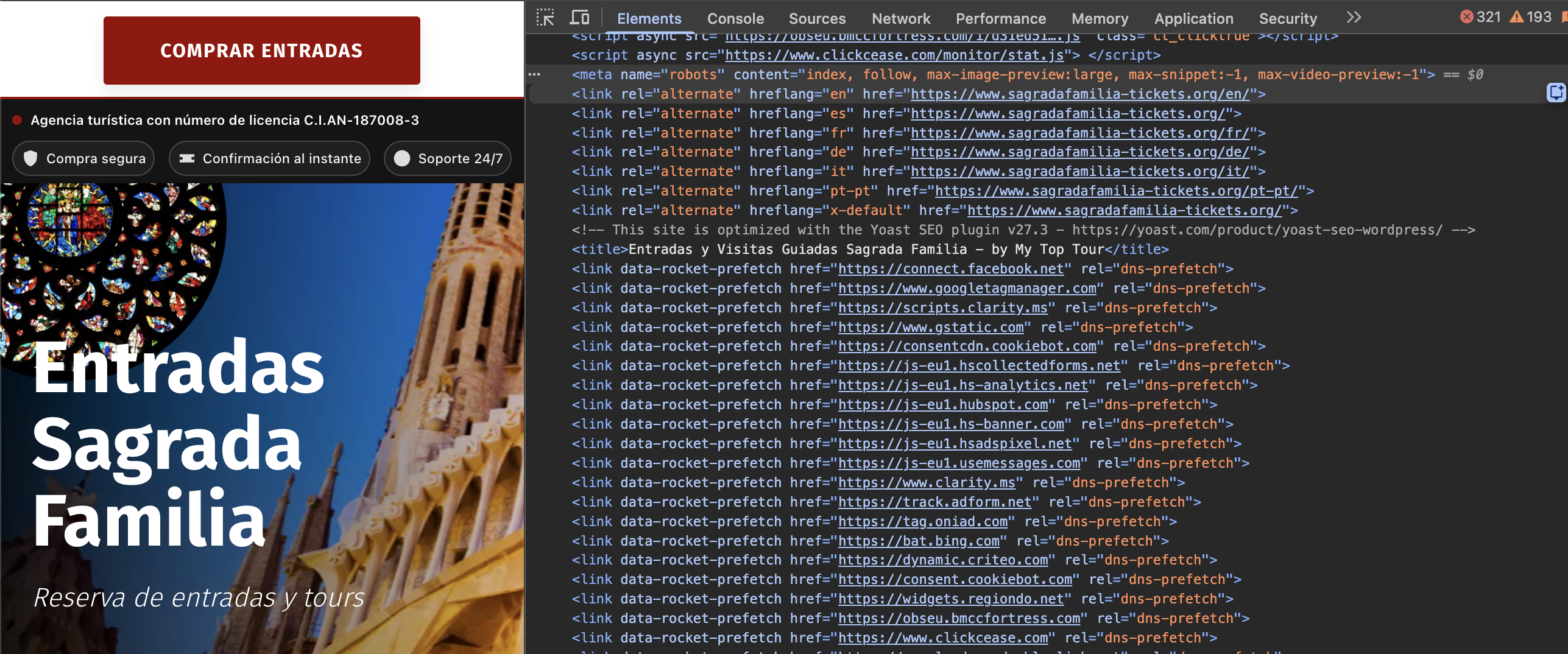
Booking tickets at the Sagrada Família's page with DevTools opened
on the side. We can see that they use meta robots tag as part of
their intention to appear optimized on Google Discover.
First, what is Google Discover?
As aforementioned above, Google Discover is a personalized content
feed. Instead of waiting for the user to type a query, Google shows
articles, videos, and stories based on what it believes the person may
be interested in. A reader might open the Google app and see content
about energy markets, finance, football, travel, SEO, nutrition, local
news, or technology without having searched for that exact article.
The articles displayed on Google Discover do not only on traditional
keyword ranking; rather, they show up whenever Google thinks the
content matches the interests of the user. Therefore, clear headlines,
strong and visually appealing images are important.
68%
of Google traffic to nearly 2,000 global news and media sites came
from Discover, according to Chartbeat data published by Press
Gazette and later summarized by industry sources.
32%
came from traditional Google Search in the same dataset, which
shows why Discover can no longer be treated as a small side
channel for publishers.
17%
of total publisher traffic in that dataset came from Discover,
compared with 8% from Google Search.
Those numbers are important because they show the strategic risk. If a
large part of your Google traffic comes from Discover, then image
previews, feed suitability, headline quality, and technical preview
permissions are not minor details. They sit directly inside the
traffic model of the website.
The tag that matters most for Google Discover
Listen, let me summarize the one thing you must remember. For your pages, use max-image-preview:large. It tells
Google that a larger image preview may be shown for the page. Google
says this setting applies across Search surfaces such as Google web
search, Google Images, Discover, and Assistant, and its Discover
documentation specifically says that large images should be enabled by
setting preview images to large or by AMP.
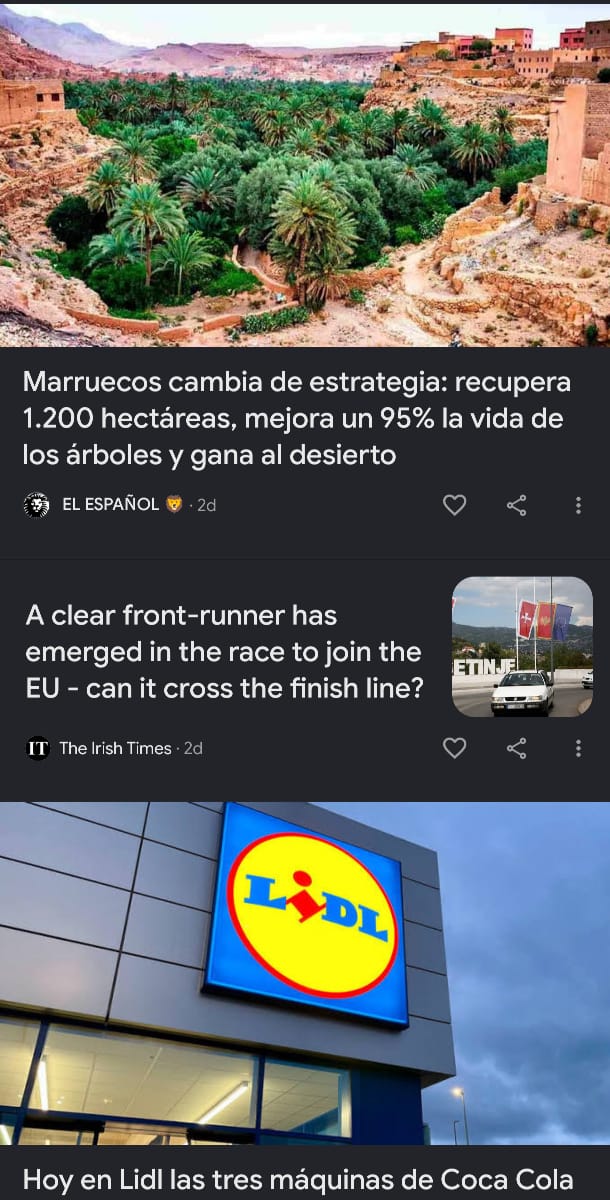
If you look at the image below, which one are you most likely to click
on? The one showing a desert or the one showing a small car just below
it?
Why do we get the recommendations we get in Google Discover?
Google also gives practical image requirements for Discover: the image
should be at least 1200 pixels wide, have more than 300,000 total
pixels, and work well in a 16:9 landscape format. That means the
technical tag alone is not enough. If your page allows large previews
but the article image is small, generic, badly cropped, or unrelated to
the topic, you are solving only half of the problem.
Image requirement
Why it matters for Discover
At least 1200 px wide
Google recommends this minimum width for large Discover-style
previews.
More than 300,000 total pixels
The image needs enough resolution to look sharp when used as a
large preview.
16:9 landscape format
Discover is a visual feed, so images need to crop well in a
horizontal card layout.
Relevant og:image or structured data image
Google says these signals can influence which image is chosen
as the Discover thumbnail.
This is where technical SEO and editorial judgement meet. A post about
electricity markets should not rely on a random light bulb image. A post
about featured snippets should show a real search result or a clear
visual of the snippet itself. A post about Google Discover should show
what a Discover card looks like, because the reader immediately
understands why the image preview matters.
1
Use a real article image
The image should help explain the article, not simply decorate the
page with a generic stock visual.
2
Control the preview source
Use a strong og:image and avoid letting Google pick a logo,
icon, or unrelated page image.
3
Check the crop
A beautiful vertical image may fail in Discover if the important
part disappears when cropped into 16:9.
There is real evidence behind this tag
The reason I would not treat max-image-preview:large as a theoretical
detail is that Google has published case studies showing measurable changes
after publishers adopted large image preview settings. Kirbie’s Cravings,
a food blog, reported a 79% increase in click-through rate from Discover after
adding the tag. Istoé, a Brazilian magazine, reported a 30% increase in CTR
and a 332% increase in clicks over six months after adopting the large image
preview setting.
79%
CTR increase reported by Kirbie’s Cravings after adding max-image-preview:large.
332%
click increase over six months reported by Istoé after adopting
large image preview settings.
I would still be careful with the interpretation. These results do not
mean every website will see the same lift, and they do not prove that
the tag alone caused every extra click. But they do show that image
preview settings can be commercially meaningful when the site already
publishes content that can perform in Discover.
What max-snippet:-1 means
The second directive is max-snippet:-1. A snippet is the
text preview Google shows below a result, and Google explains that
snippets are primarily created from page content, although the meta
description may be used when it gives users a better summary. The max-snippet directive lets you control the maximum number of characters Google can show
as a text preview.
The value -1 means you are not setting a fixed character limit.
In plain language, you are allowing Google to choose the snippet length it
believes will help users understand the page and decide whether to visit it.
This is usually the sensible default for educational articles, technical guides,
and thought leadership content because the preview needs enough room to communicate
value.
But this is where the decision becomes more strategic. A longer snippet
can improve trust before the click, but it can also answer enough of the
user’s question directly on the results page. That is the same tension
publishers are feeling with featured snippets, AI Overviews, and AI
Mode: Google can make content more visible while also reducing the need
to visit the original page.
However, I want to warn about something that is happening. Featured
snippets are slowly being replaced by AI Overviews in Google. This is
not necessarily positive for websites that had really strong
definitions, clear language and useful answers to users. Google is just
"taking" those strong, high-traffic results and blending them in into
Google AI Overviews.
However, max-snippet is still relevant because it controls how
much text Google is allowed to use for search result snippets and AI-style
previews, not only old Featured Snippets. If, for your business makes more
sense to limit and reduce the chance of appearing in featured snippets, Google
says you can experiment with lower max-snippet values. For example,
this would tell Google that only 80 characters may be shown as the snippet:
<meta name="robots" content="max-snippet:80">
This is not a clean on-off switch. Google says there is no exact minimum
length required for a featured snippet, and a low max-snippet setting does not guarantee removal. If you need a guaranteed block, Google’s
stronger option is nosnippet, but that also removes regular
snippets, which can hurt how attractive the page looks in search.
How do you configure videos in Google Discover?
You can use max-video-preview:-1 in the head tag
of your HTML to control how much of your video you want it to be previewed
to users. The value -1 means there is no fixed limit from your
side, so Google can decide the preview length when it shows a video snippet.
For a normal written article with no video, this setting may not make
much difference. But for tutorials, interviews, product demos, recipes,
travel pages, educational videos, or embedded YouTube content, it is
useful to avoid accidentally limiting a preview that could make the
result more attractive.
I would only use a fixed number if there is a business reason, for
example paid video content, licensing restrictions, premium courses,
trailers, or content where you do not want Google showing too much
before the click.
Why this matters for publishers and blog-style websites
For a small blog, this is a useful technical check. For a publisher, it
can become a template-level issue. If the main article layout does not
allow large image previews, then thousands of articles may be published
with the same limitation. That does not mean every article would have
succeeded in Discover, but it means the site is adding friction before
the content even has a chance to compete visually.
The bigger problem is dependency. Reuters Institute’s 2026 journalism
trends report says publishers expect traffic from search engines to
decline by more than 40% over the next three years, and it describes
Google Discover as a critical but slightly volatile source of referral
traffic. That is exactly why I think this topic deserves attention.
Discover can bring traffic, but it is also unpredictable, and publishers
do not fully control the feed.
Discover visibility
Large image previews can make an article more noticeable when Google
chooses to show it in the feed.
Snippet control
max-snippet affects how much text Google can show before
the user clicks.
Publisher risk
A traffic channel that can produce large spikes can also disappear
quickly when interests or algorithms shift.
Template scale
One robots meta setting in an Astro layout can affect every article
using that layout.
Why this matters for traffic data
Discover traffic behaves differently from normal search traffic. With
Search, you can usually connect performance to queries, rankings,
impressions, and click-through rate. With Discover, the user did not
search for your exact keyword, so the data feels more like feed
performance: impressions can rise suddenly, clicks can spike, and the
same URL can disappear from the feed without a clear keyword ranking
explanation.
That is why I would never analyze Discover traffic together with normal
organic search and call it a day. In Search Console, Discover should be
reviewed separately when the report is available. You want to look at
which pages received impressions, which images were used, whether the
headline matched the topic, whether the article was tied to a current
interest, and whether the click-through rate changed after image or
preview improvements.
A missing preview tag will not explain every traffic problem. Discover
performance can be affected by topic fit, content quality, image
quality, freshness, site reputation, page experience, and simple
volatility. But if the tag is missing, it is one of the easiest
technical limitations to fix, and it is worth checking before you start
inventing complicated explanations.
What to do today
Make sure you review what's on the head tag across your sites.
Whilst, adding the tags is not a growth strategy by itself, but it is
part of the technical foundation that lets a content strategy travel
through Search, Discover, images, videos, and snippets. For a blog, that
can mean better presentation. For a publisher, it can mean fixing a
setting that affects thousands of articles at once.
Need help checking if your site is blocking visibility?
I can review whether your important pages have the right technical
setup for Google Search, Google Discover, snippets, images, analytics,
and conversion tracking. The goal is simple: find the small technical
issues that may be limiting visibility and connect them with the
traffic data that actually matters.
The first step is a focused review of your page head, indexation,
preview tags, image setup, Search Console data, and obvious conversion
friction.
Sources and further reading
I used Google’s official documentation for the technical definitions and
publisher/media sources for the traffic context. The main point is
simple: do not guess these tags from SEO folklore. Check what Google
says, then connect it with your own Search Console data.